Among all Kobo e-readers, only the Forma, Sage, and Elipsa officially support downloading books from Dropbox directly on the device. This guide shows you how to unlock the Dropbox feature that Kobo deliberately withheld from the Nia, Clara HD/2E, Libra H2O/2, and other 6–7.8 inch models.
Installation
Install NickelMenu
- Connect your e-reader to your computer
- Download KoboRoot.tgz
- Place KoboRoot.tgz into
KOBOeReader/.kobo.
If you can’t see the .kobo folder, you may need to:
- Windows
- macOS:
Shift + Cmd + .
- Safely eject the e-reader — it should start updating
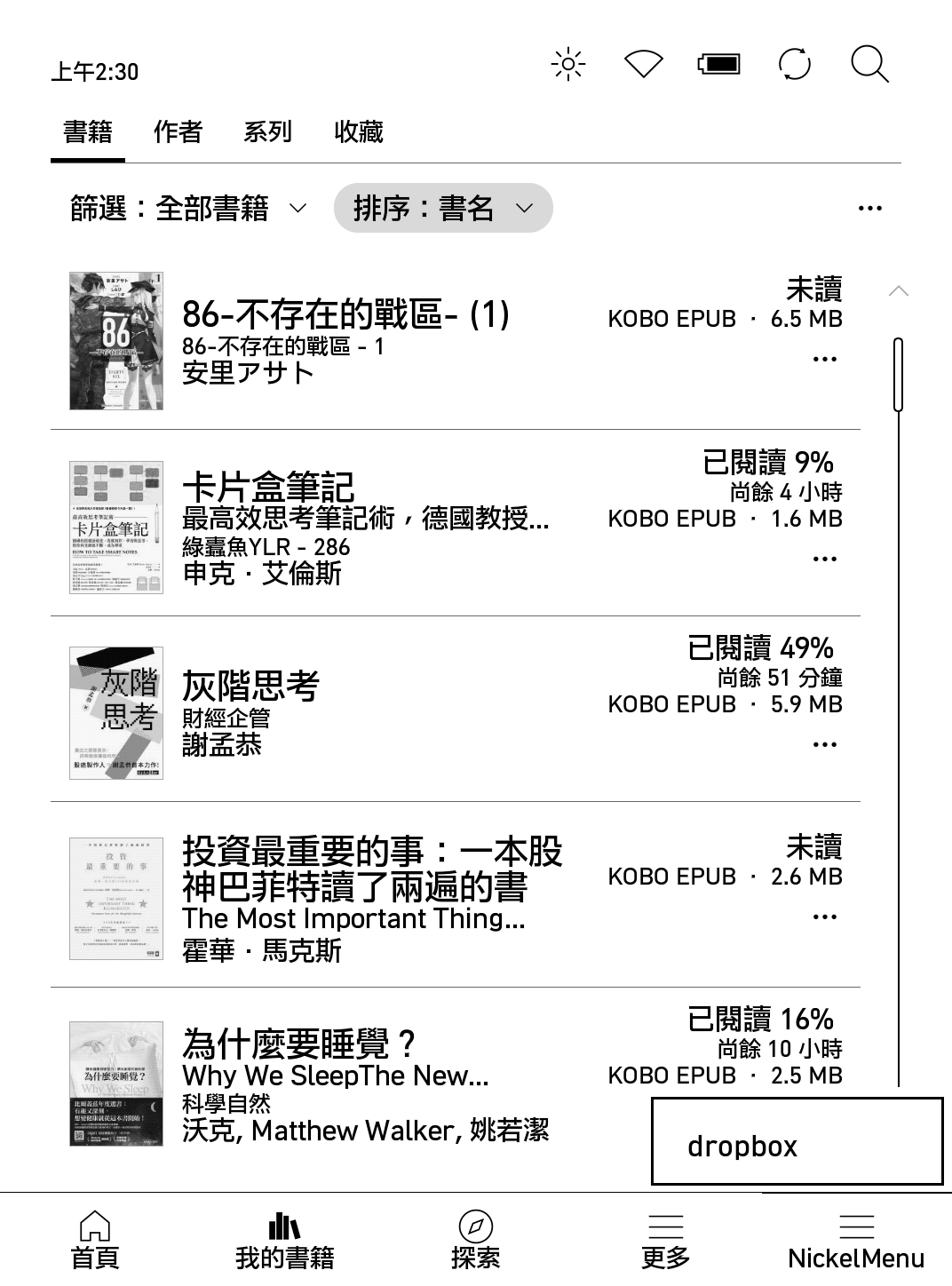
- Confirm the NickelMenu button appears in the bottom-right corner
- Reconnect the e-reader to your computer
- Create a file called
config(no extension) inKOBOeReader/.adds/nm/with the following content:
menu_item:main:dropbox:nickel_open:library:dropbox
If you have a Libra 2, you’re done here! Otherwise, keep going.
Write the Dropbox URL config
- Open
KOBOeReader/.kobo/Kobo/Kobo eReader.confand find the linedropbox_link_account_poll=. Change it todropbox_link_account_poll=https://authorize.kobo.com/{region}/{language}/LinkDropbox - In the same file, find
kobo_dropbox_link_account_enabled=Falseand change it tokobo_dropbox_link_account_enabled=True. Save the file. - Safely eject the e-reader
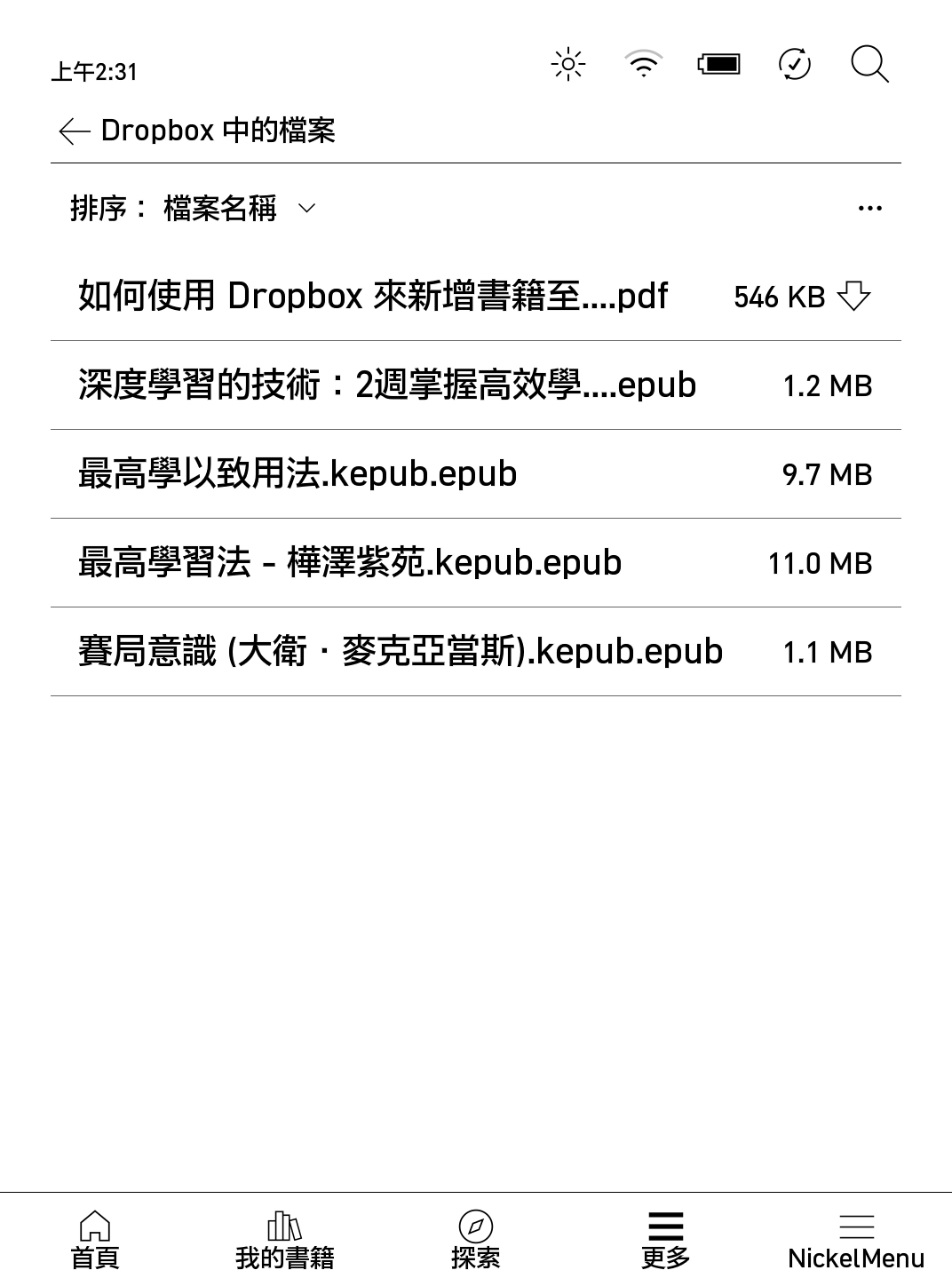
- Now the NickelMenu in the bottom-right corner should have a Dropbox button. Tap it, log in to your Dropbox account, and you’re good to go.
Result
Ref:
- https://www.reddit.com/r/kobo/comments/txhkfa/how_to_access_native_dropbox_integration_on_all/
- https://www.mobileread.com/forums/showthread.php?t=344661
P.S. If you’re still having trouble, the Kobo Unofficial Telegram Group might be able to help.